
Images help showcase your products, services and work, so it’s frustrating when they suddenly disappear or stop loading.
If you’re dealing with WordPress images not showing on your website, there are several possible causes, including broken links, caching, plugin conflicts and hosting issues.
Some problems are easy to check yourself. Others may need a closer look at your website settings.
Here’s where to start.
Why are WordPress images not showing?
When an image doesn’t appear, it doesn’t necessarily mean the file has been deleted. WordPress might be looking in the wrong place, or something may be stopping the image from loading.
The first thing to check is how many images are affected:
- One missing image: The file may have been deleted, moved or linked incorrectly.
- Several images missing from one page: There may be a problem with that page.
- Images missing across the website: Caching, plugins or hosting could be involved.
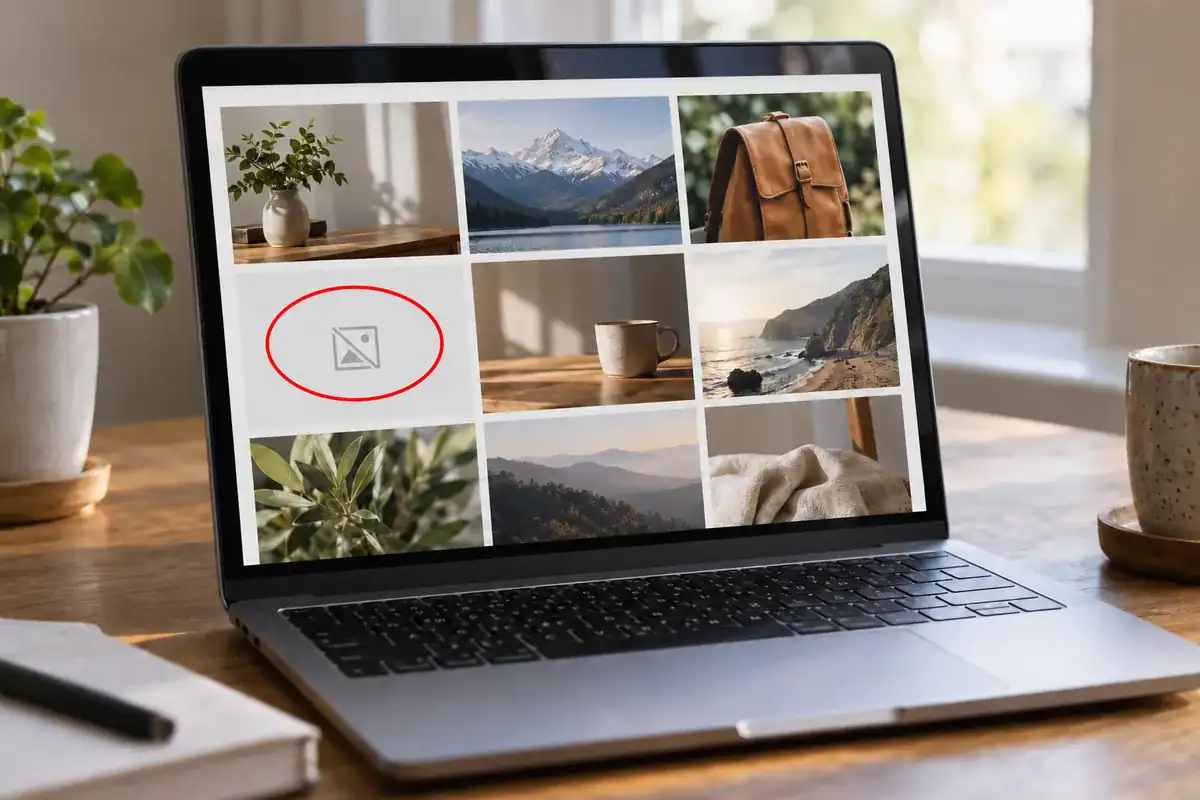
Common causes of missing WordPress images
Broken image links or missing files
Every image has a web address that tells WordPress where to find it.
If the file has been deleted, moved or linked incorrectly, visitors may see an empty space or broken image symbol.
This sometimes happens after moving a website to new hosting or changing domain names.
Website caching
Caching helps your website load faster by storing temporary copies of files and pages.
Sometimes those saved copies become outdated, causing old images to appear or recent changes not to show.
Caching may be handled by your browser, a WordPress plugin, your hosting provider or Cloudflare, a service that helps websites load faster and provides extra security.
Image optimisation or plugin conflicts
Image optimisation plugins help make pictures smaller so your website loads faster.
Some also convert images to formats such as WebP or control when pictures load.
Occasionally, a plugin setting or a conflict between plugins can stop images from displaying correctly.
Website security or hosting issues
Images can also fail to load because of security settings, incorrect file permissions or problems with your hosting.
Older image links using HTTP instead of HTTPS may also cause issues.
These problems often need a closer look at how your website is set up.
How to Fix WordPress Images Not Showing
Before changing website settings or reinstalling plugins, work through these checks.
1. Refresh the page and try another browser
Start by refreshing the affected page.
Then open your website in a private or incognito browser window.
You can also try another device or your phone.
If the images appear on another device or browser, your usual browser may be showing an outdated version of the page.
2. Check the WordPress Media Library
Log in to your WordPress dashboard and go to Media > Library.
Find one of the missing images and click it to open its details.
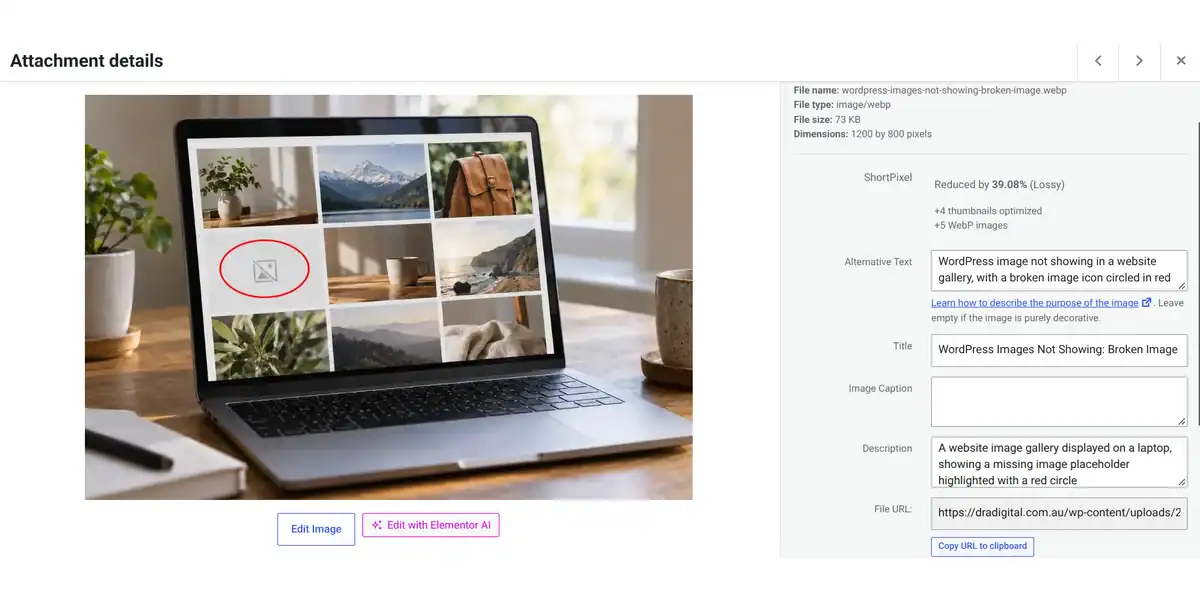
Check whether the image appears in the preview. If there’s an option to open the file URL, try opening it in a new browser tab.
If the image opens normally, the file is accessible and the problem may be with how it’s displayed on the page.
If it doesn’t open, the file may be missing or blocked.
You can learn more in the official WordPress Media Library guide.
Important: Don’t start deleting or reuploading images until you know what’s causing the problem.
3. Clear your website cache
If you use a WordPress caching plugin, look for an option to clear or purge the cache.
Your hosting provider may also have its own caching system.
If your website uses Cloudflare, check its dashboard for the option to clear cached files as well.
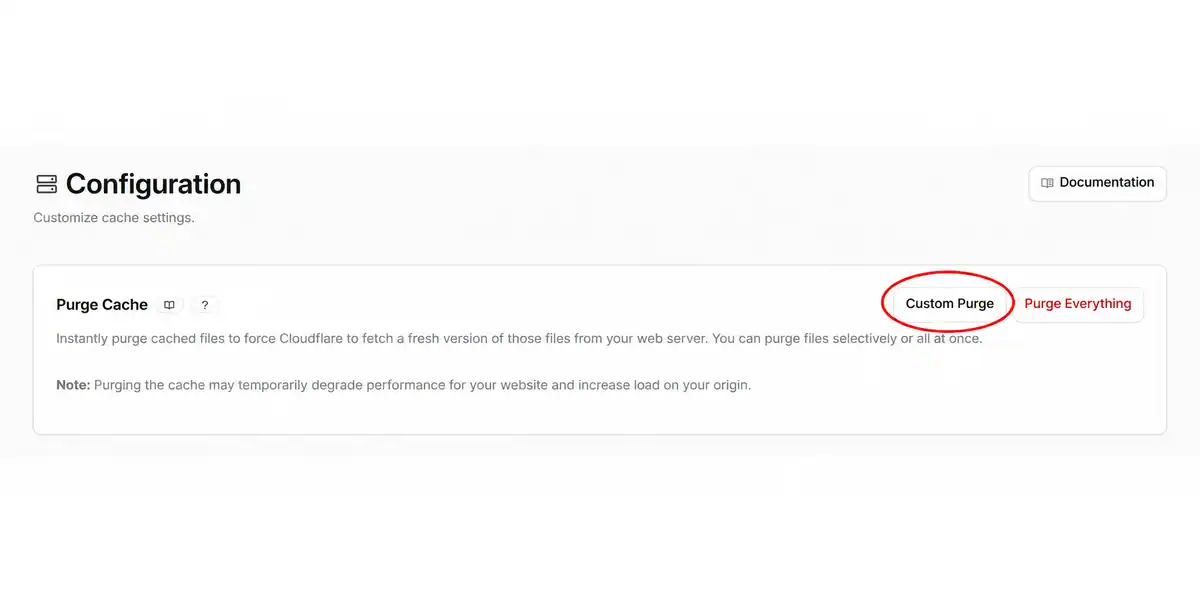
Where possible, clear the cache for the affected image or page rather than the entire website.
Once you’ve cleared the relevant cache, refresh the page and check whether the images appear.
Remember, clearing the cache won’t fix a missing file or broken image link.
4. Check for recent website changes
Think about when the problem started.
Have you recently:
- Updated WordPress?
- Updated your theme or plugins?
- Installed a new plugin?
- Changed image optimisation or caching settings?
- Moved your website to another hosting provider?
- Changed your domain name or HTTPS settings?
If the images stopped working shortly after one of these changes, it may help identify the cause.
Don’t rush to uninstall plugins or undo updates. Doing so without knowing the cause could create other problems.
5. Check whether you have a recent backup
It’s also worth checking whether your website has a recent backup.
A backup is a saved copy of your website that may be used to restore it if something goes wrong.
If your images disappeared after an update or website change, a backup from before the problem started could be helpful.
Be careful: Restoring an older backup can remove changes made since that backup was created, including new pages, posts or other content.
Restoring a backup should be considered carefully, not used as the first solution.
If you’re unsure, ask your hosting provider or WordPress support person for advice before restoring anything.
Why do images appear in the editor but not on the live website?
Sometimes an image appears correctly while you’re editing a page but doesn’t show on the published website.
This can happen with Elementor and other WordPress page builders, as well as the standard WordPress editor.
Caching, image optimisation settings or plugin conflicts may be responsible.
Start with the browser and Media Library checks above.
Some page builders also have options to clear saved files or cached information. The location of these settings depends on which editor you’re using.
When should you ask for help?
If you’ve tried the basic checks and images are still missing, the problem may need further investigation.
This could involve checking image links, plugin conflicts, website security or hosting settings.
Avoid making major changes or disabling several plugins at once if you’re not sure what they do.
Finding the actual cause first can save time and prevent additional problems.
Frequently asked questions
Why have images suddenly disappeared from my WordPress website?
Images can disappear because of broken links, caching, plugin conflicts or hosting problems. If several images disappeared at once, check whether your website was recently updated or changed.
Why are some WordPress images showing but others aren’t?
Some images may have incorrect links, missing files or different loading settings. Check whether the problem affects certain pages or recently uploaded pictures.
Will clearing the cache fix missing images?
Sometimes. Clearing the cache can help if your website is showing outdated information, but it won’t repair broken links or restore deleted files.
Do I need to reupload my missing WordPress images?
Not necessarily. First check whether the images still exist in your WordPress Media Library. Reuploading everything may be unnecessary.
Need a little help?
If you’re experiencing website problems or aren’t sure what to check, I’m happy to have a quick look and point you in the right direction, at no charge.
If further investigation or repairs are needed, I can explain what’s involved before any work begins.
Get in touch with DRA DigitalRelated WordPress support
My WordPress Support service covers website troubleshooting, plugin conflicts, errors and other technical issues.
You can also find more helpful guides in the DRA Digital Knowledge Base.